Connecting Your NiaHealth Account to ChatGPT and Claude (Alpha)
The NiaHealth Connector is an optional feature that lets you link your NiaHealth account to a third-party AI assistant, currently ChatGPT (OpenAI) or Claude (Anthropic), so you can ask questions and work with your NiaHealth information inside those tools.
This page explains, in more detail than the connection screen, what the connector does, what data it shares, what happens to that data once it leaves NiaHealth, and what you are agreeing to when you connect.
What the connector does
The connector gives ChatGPT or Claude read-only access to information already available in your NiaHealth account. With it, you can:
- Summarize your latest lab results and health scores by area
- Identify which health areas may need more attention
- Explore individual biomarkers and how they have changed over time
- Retrieve your personalized nutrition and exercise guidance, recommendations, and training zones
- Pull up action items and wearable data on demand
- Use your NiaHealth data alongside other things you are working on, such as preparing for a medical visit or researching a topic
The connector cannot edit your NiaHealth profile, change your recommendations, contact your care team, modify your training zones, or take any other action inside your NiaHealth account.
⚠️ Important to know before you connect
NiaHealth takes the privacy and security of your health data seriously. By connecting, you authorize NiaHealth to share sensitive health information from your account with ChatGPT or Claude. This may include lab results, recommendations, wearable data, care-team notes or messages, and related profile information.
Once shared, your data is governed by the external platform's terms, privacy policy, data-retention practices, account type, plan, and settings — not by NiaHealth. Depending on your ChatGPT or Claude account type and settings, your conversations and shared health data may be used by those platforms to train their AI models. NiaHealth does not control how ChatGPT or Claude process, store, use, or retain information after it has been shared through your authorized use of the connector.
The connection is read-only into NiaHealth. ChatGPT and Claude cannot edit your profile, change recommendations, message your care team, or take action inside your account. Disconnecting stops future access, but may not delete information already shared.
ChatGPT and Claude are general-purpose AI tools, not medical devices and not part of your NiaHealth care team. Their responses are not medical advice and may be incomplete or inaccurate. Do not rely on them for diagnosis, treatment, or urgent care — contact your care team or emergency services instead.
Connecting is your choice, and how you use the information you receive is your responsibility. Learn more.
Before you start
You'll need:
- A NiaHealth account — the same login you use at app.niahealth.co.
- A paid ChatGPT or Claude plan. Custom connectors aren't available on the free tiers.
- Claude: Pro, Max, Team, or Enterprise.
- ChatGPT: Plus, Pro, Business, or Enterprise — set up from the web app (chat.openai.com) or the Mac/Windows desktop app, not the mobile app.
- The NiaHealth MCP server URL:
https://app.niahealth.co/api/u/mcp
You only do this setup once per platform. After that, NiaHealth shows up as a toggle inside any new chat.
Connecting NiaHealth to Claude
Step 1 — Open Claude's connector settings
- Go to claude.ai and sign in.
- Click your profile icon in the bottom-left and open Settings.
- Go to Connectors.
- On a Team or Enterprise plan, go to Settings → Organization Settings → Connectors instead. Your workspace admin may need to enable custom connectors first.
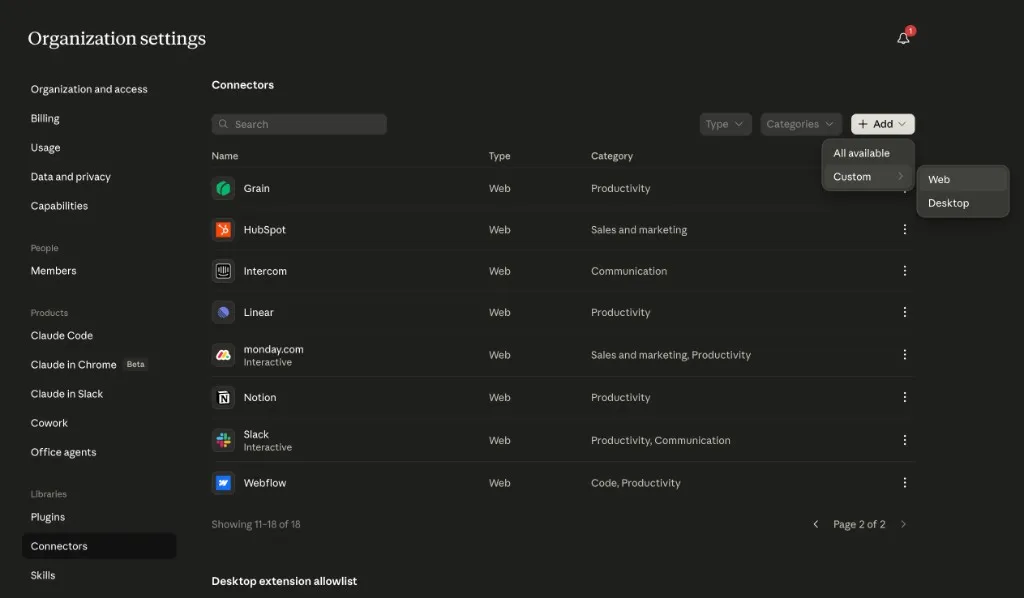
Step 2 — Add NiaHealth as a custom connector
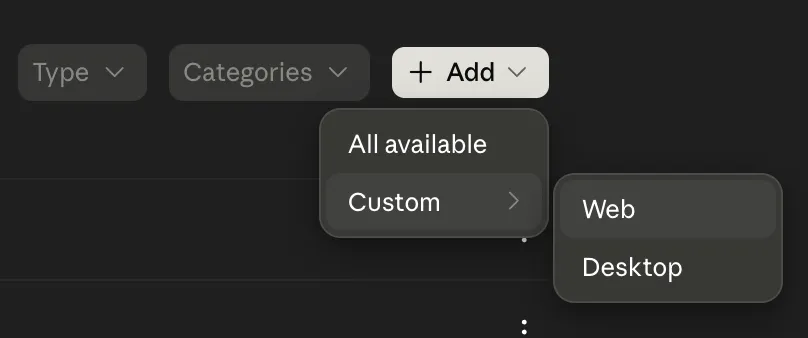
- Click + Add at the top right of the Connectors page.
- In the menu that appears, hover over Custom and click Web.
- In the dialog that opens, fill in:
- Name:
NiaHealth - Remote MCP server URL:
https://app.niahealth.co/api/u/mcp
- Name:
- Click Add.
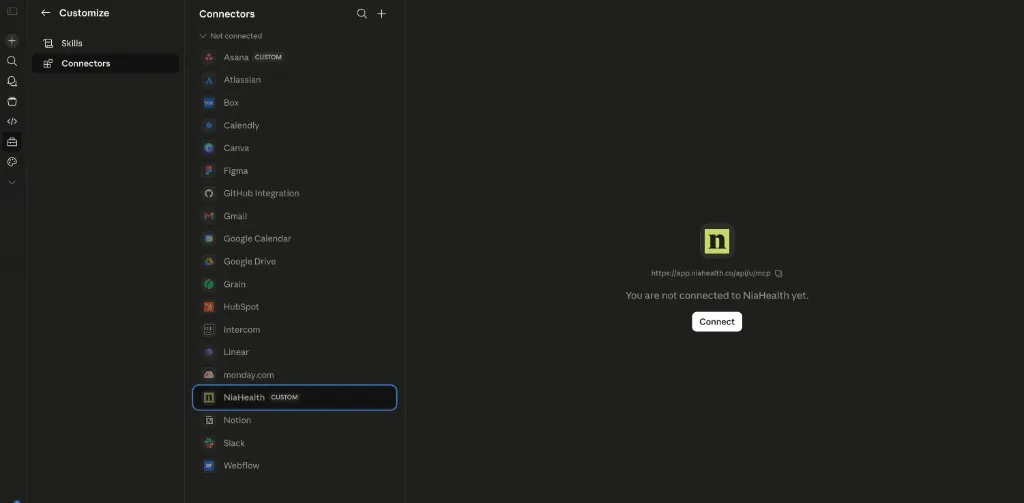
Step 3 — Sign in to NiaHealth and approve access
- Open Customize → Connectors in Claude, find NiaHealth in your connector list, and click Connect.
- You'll be redirected to NiaHealth. Sign in with your usual NiaHealth credentials if you're not already signed in.
- Review the list of items Claude is requesting access to, then click Allow Access at the bottom of the screen.
- You'll be sent back to Claude. The connector should now show as Connected.
Step 4 — Try it out
- Start a new chat in Claude.
- Click Search and tools near the message box and confirm NiaHealth is in the list. Toggle it on.
- Try one of these to test the connection:
- "Show me my latest biomarker results and flag anything outside the optimal range."
- "What is my NiaHealth care team currently recommending I focus on?"
- "What does my wearable data from the last 14 days look like — sleep, HR, activity?"
The first time Claude uses a NiaHealth tool, it'll ask your permission. You can approve once or for the whole session.
📱 On mobile too. Once you've connected NiaHealth here on Claude web or desktop, it's automatically available in the Claude iOS and Android apps — no separate setup required.
Connecting NiaHealth to ChatGPT
A few things to know before you start, because of how ChatGPT currently handles custom connectors:
- In ChatGPT, custom connectors are managed under the Apps section of Settings (what other platforms call "connectors").
- Custom apps are available on Plus, Pro, Business, and Enterprise plans, and only in the web app at chat.openai.com or the Mac/Windows desktop app. They aren't available in the mobile app.
- You'll need to turn on Developer mode in ChatGPT's app settings before you can add a custom app. It's a one-time toggle — instructions are below.
- On Business and Enterprise workspaces, an admin may need to enable custom apps before you can add one.
- You need to enable NiaHealth before you start the chat. You can't switch it on partway through a conversation that's already in progress.
- ChatGPT's settings menus change fairly often — the exact wording of these options may look slightly different depending on your plan and when you're reading this.
Step 1 — Open ChatGPT's app settings
- Go to chat.openai.com and sign in.
- Click your profile icon and open Settings.
- In the left sidebar, click Apps.
Step 2 — Enable Developer mode
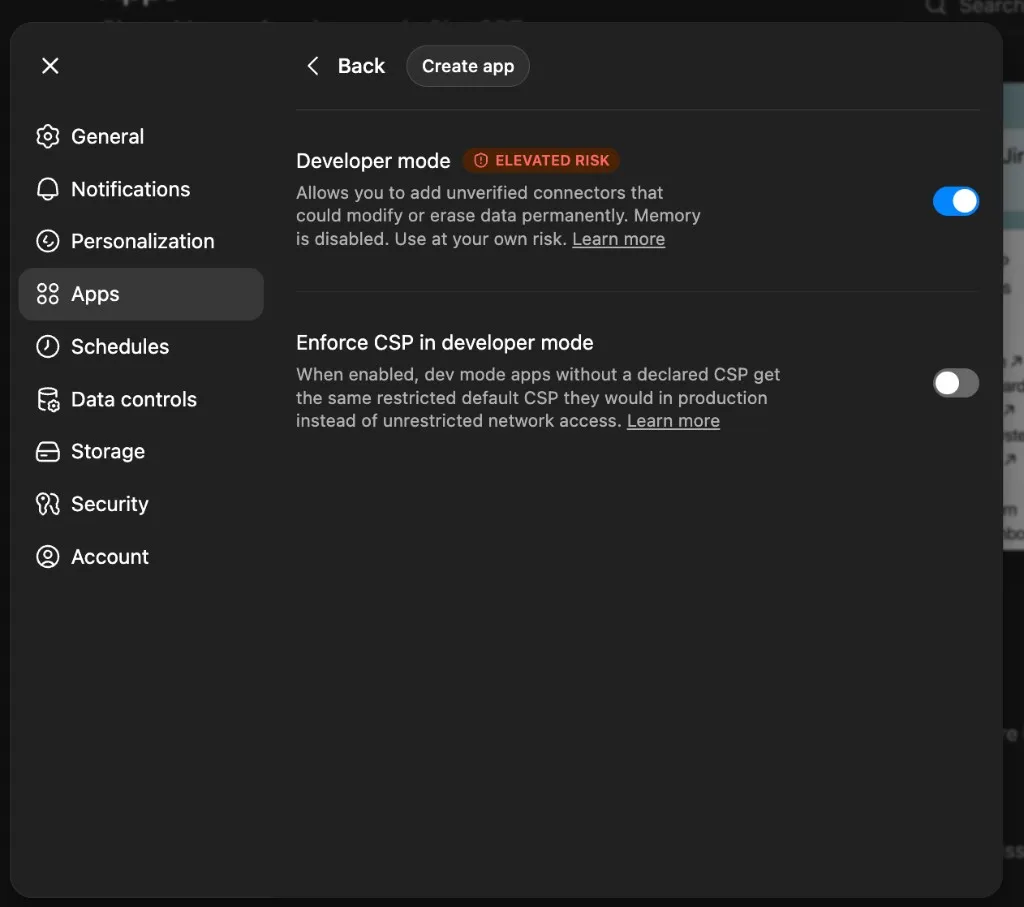
Custom MCP connectors are gated behind a one-time Developer mode toggle. If you skip this, the option to add a custom app won't appear.
- Still on the Apps page in Settings, click Advanced settings.
- Turn on Developer mode. ChatGPT will warn you that this allows unverified connectors and disables Memory — that's expected for custom apps.
- Leave Enforce CSP in developer mode off unless your IT/admin has told you otherwise; it's not required for the NiaHealth connector.
Once Developer mode is on, a Create app button appears at the top of the Advanced settings page (and on the Apps page). You only need to do this once per ChatGPT account.
Step 3 — Add NiaHealth as a custom app
- Click Create app (it appears at the top of the Advanced settings page and on the Apps page once Developer mode is on).
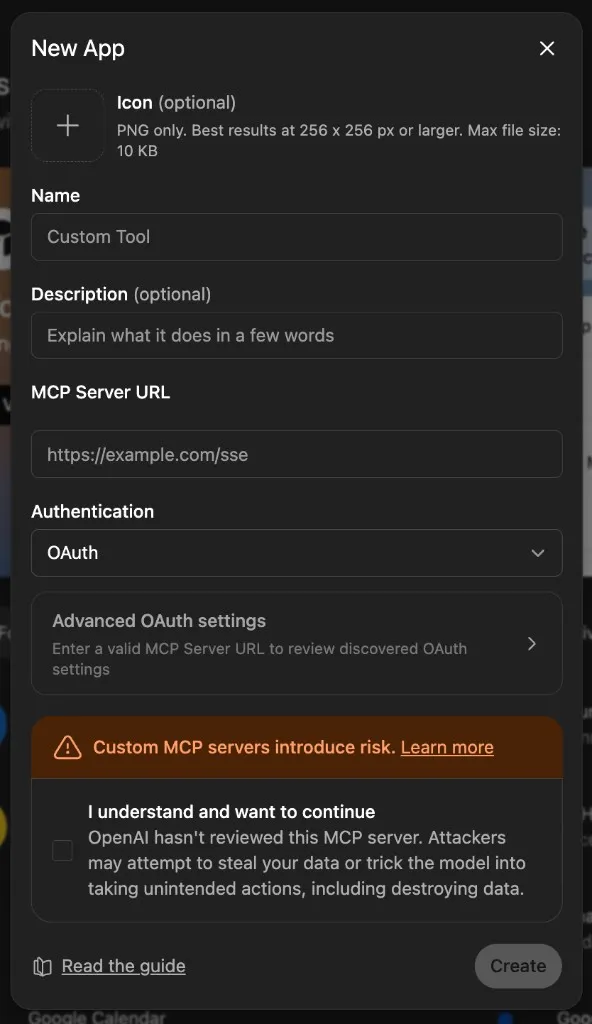
- In the New App dialog, fill in:
- Name:
NiaHealth - MCP Server URL:
https://app.niahealth.co/api/u/mcp - Authentication:
OAuth(this is the default — leave it as is). - Icon and Description are optional — you can leave them blank.
- Name:
- ChatGPT will show a warning that custom MCP servers introduce risk. Tick I understand and want to continue to acknowledge it.
- Click Create. The button stays disabled until the URL is filled in and the risk box is ticked.
Step 4 — Connect to NiaHealth and approve access
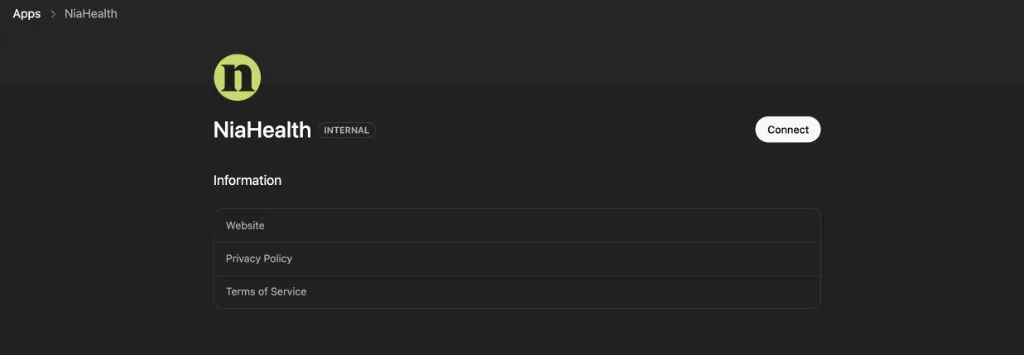
After clicking Create, ChatGPT lands on the NiaHealth app detail page (still inside Settings → Apps). The connection isn't active yet — you have to kick off the OAuth handoff.
- On the NiaHealth app detail page, click Connect in the top right.
- ChatGPT will redirect you to NiaHealth. Sign in if you're not already signed in.
- Review the list of items ChatGPT is requesting access to, then click Allow Access at the bottom of the screen.
- You'll be returned to ChatGPT and the NiaHealth app should now show as connected.
Step 5 — Try it out
- Start a brand new chat — don't try to add NiaHealth to an existing conversation.
- Before you type your first message, open the connectors / sources menu (it's usually under the + icon or the Tools menu, depending on your ChatGPT version) and turn on NiaHealth for this chat.
- Try one of these:
- "Pull up my latest health scores and explain what each one means."
- "What is my care team currently recommending, and what should I prioritize?"
- "Compare my last two blood draws — what's improved, what's gotten worse?"
What ChatGPT and Claude can access
When you click Allow Access on the NiaHealth approval screen, you're granting ChatGPT or Claude permission to view the following from your NiaHealth account:
- View your blood test results and health biomarkers
- View your care team's recommendations and clinical analysis
- View your goal tracking history
- View your wearable device data and health trends
- View your AI coaching insights
- View your health scores
- View your personalized training zones
- View your care team's letters and messages
- View profile information necessary for your AI assistant to discuss your specific health scenarios
Authentication
The MCP server uses OAuth 2.0 authorization code flow with PKCE. Your AI client handles the full handshake automatically — you just sign in and approve.
- Access level — Read-only. ChatGPT and Claude can read your NiaHealth data to answer your questions, but they cannot edit your profile, change recommendations, mark anything as complete, or take any other action inside NiaHealth.
- Scope — Access to your own user-scoped NiaHealth data only (your biomarkers, wearables, recommendations, etc.). No access to other users' data.
- Revocation — You can revoke access at any time from your NiaHealth dashboard's connected-apps settings, or by disconnecting NiaHealth directly from ChatGPT or Claude's connector settings. Access is revoked immediately, and you can always reconnect later.
Troubleshooting
"Authentication Required" or repeated reconnect prompts
Cause: Your session has expired or the connector needs to be re-authorized.
Solution:
- Open Settings → Apps in ChatGPT, or Settings → Connectors in Claude.
- Find NiaHealth in the list and click Reconnect (or remove and re-add it).
- Sign in to NiaHealth and click Allow Access again to complete the authorization flow.
No data shows up when you ask a question
Cause: Your NiaHealth account may not have the kind of data you're asking about yet — for example, you don't have any results loaded into your dashboard, or you haven't connected a wearable device.
Solution:
- Log in to your NiaHealth dashboard at app.niahealth.co.
- Confirm you have results loaded into your dashboard. If your results are still pending, your care team is still working on them.
- For wearable questions, confirm you have a wearable device connected in the Tracking section.
"Insufficient Permissions" error
Cause: One or more of the required access scopes weren't granted during the authorization flow (for example, you clicked Deny instead of Allow Access, or only approved a subset).
Solution:
- Disconnect NiaHealth from your ChatGPT or Claude connector settings.
- Reconnect, and on the NiaHealth approval screen, make sure you click Allow Access at the bottom so all of the requested scopes are granted at once.
A specific question returns no results
Cause: The information you're asking about may not exist on your NiaHealth account yet.
Solution:
- For recommendations: confirm your most recent report has been finalized and your recommendations have been shared with you.
- For training zones: confirm your training zones have been generated for your account — this typically requires fitness or VO2 max data.
- For wearable data: confirm your wearable device is connected and syncing in the Tracking section of your NiaHealth dashboard.
- For biomarker comparisons: confirm you have more than one set of results loaded into your dashboard — trend questions need at least two to compare.
Best practices
Asking effective questions
- Be specific. "How's my cardiovascular health and what should I focus on?" works better than "Am I healthy?"
- Use natural language. The connector understands conversational requests — you don't need any special syntax or tool names.
- Layer follow-ups. Ask ChatGPT or Claude to explain why something matters, not just what it is. Use the data as a launching point for a real conversation.
Getting the most value
- Check in with each new report. Review your NiaHealth data with ChatGPT or Claude every time a new set of results lands — it's a quick way to make sense of what changed.
- Use it to plan, not just to read. Turn your recommendations into actual meals, workouts, or weekly plans you can act on.
- Track progress over time. Ask for comparisons across reports to see where you're moving in the right direction (and where you're not).
Privacy-conscious usage
- Review what's being requested. Before clicking Allow Access, take a moment to read the list of access scopes on the NiaHealth approval screen.
- Disconnect when you're not actively using it. If you only use the connector occasionally, you can disconnect between sessions and reconnect when you need it.
- Be thoughtful about sharing. Avoid screenshotting or forwarding sensitive health data that ChatGPT or Claude generates from your NiaHealth account.
Support
For account-related issues or connector questions.
Phone
(647) 931-0600
FAQ
Browse the NiaHealth FAQ for answers to common questions.
Contact us
Privacy officer
For privacy and data requests only.
Security
View our security and trust portal.
Getting help
If you run into issues with the NiaHealth connector:
- Check the Troubleshooting section above for the most common fixes.
- Reach out to our CX team at support@niahealth.co or (647) 931-0600 for anything account-related.
- Report bugs or unexpected behavior inside ChatGPT or Claude through that platform's feedback system — issues with how ChatGPT or Claude handles your data once it's there are handled on their side.
Feedback
We're continuously improving the NiaHealth connector. We'd love to hear:
- Feature requests and use cases you'd like supported
- Bugs or unexpected behavior
- Questions that ChatGPT or Claude couldn't answer well, that you'd like them to
Send feedback to support@niahealth.co.